In today’s fast-paced digital world, productivity tools are essential for managing work efficiently. WPS Office is one such tool that has gained immense popularity for its versatility, user-friendly interface, and compatibility with multiple file formats. Whether you are a student, professional, or entrepreneur, learning to use WPS Office effectively can save you a significant amount of time and improve your workflow. Here are the top 10 tips to maximize your efficiency with WPS Office.
Understand the Interface and Customize It
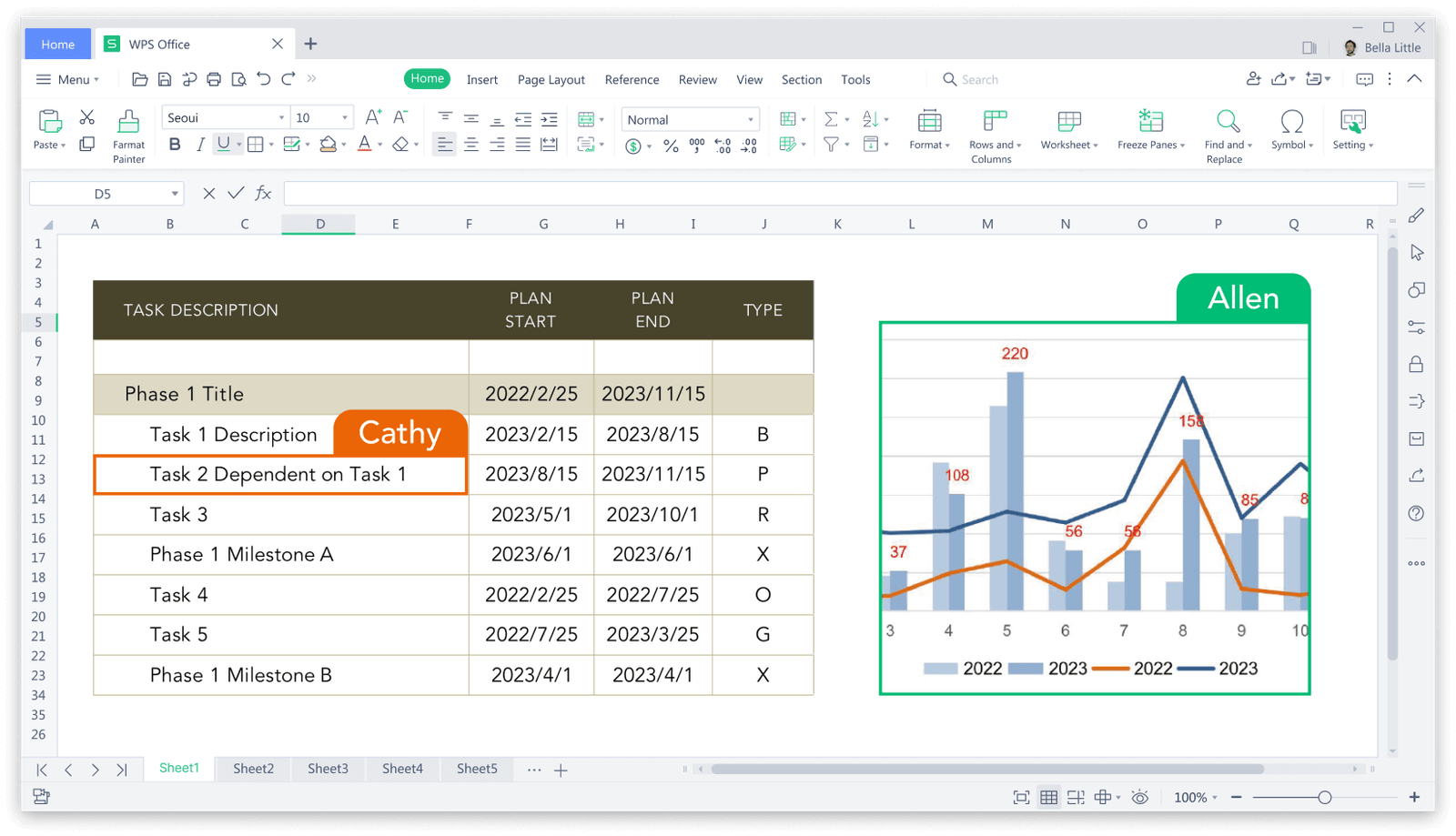
Familiarity with the WPS Office interface is the first step toward efficiency. The software offers a clean layout with tabs like Home, Insert, Page Layout, Review, and View, making it easy to locate tools quickly. Customize your toolbar by adding frequently used functions such as text formatting, image insertion, or table creation. This reduces the time spent navigating menus and lets you focus on your work rather than hunting for options.
Use Keyboard Shortcuts for Faster Navigation
One of the most powerful ways to enhance your efficiency with WPS Office is mastering keyboard shortcuts. Common shortcuts like Ctrl+C for copy, Ctrl+V for paste, and Ctrl+Z for undo can speed up your work dramatically. Additionally, WPS Office offers unique shortcuts for switching between tabs, formatting text, or inserting charts. Investing time in learning these shortcuts pays off by minimizing reliance on the mouse and allowing you to work seamlessly.
Leverage Templates for Quick Document Creation
Creating documents from scratch can be time-consuming, but WPS Office provides a vast library of templates for reports, resumes, presentations, and spreadsheets. Using these templates ensures your work maintains a professional look while saving you the effort of formatting from scratch. You can also customize templates to suit your specific needs, which helps standardize your documents and reduces repetitive work.
Make the Most of Cloud Integration
WPS Office supports cloud integration, allowing you to store and access your documents from anywhere. Using cloud storage ensures that you never lose your work and can collaborate with colleagues or classmates in real time. Syncing your documents across devices also means you can switch seamlessly between your desktop, laptop, or mobile device without losing continuity, making your workflow more flexible and efficient.
Utilize the PDF Tools Effectively
WPS Office offers robust PDF editing capabilities, which can be a huge time-saver. You can convert documents to PDF, merge multiple files, annotate text, and even extract pages. By mastering these tools, you reduce the need for additional software and streamline tasks that typically require multiple applications. This feature is particularly useful for professionals dealing with contracts, reports, or presentations.
Explore Advanced Spreadsheet Functions
Spreadsheets are more than just tables, and WPS Office Excel offers a variety of advanced functions to improve efficiency. Learn to use formulas, pivot tables, conditional formatting, and charts to manage data effectively. Automating calculations and summarizing data visually can save hours of manual work. Regularly using these features transforms spreadsheets from simple data holders into powerful analytical tools.
Customize Styles and Formatting
Consistent formatting makes your documents look professional and readable. WPS Office allows you to create custom styles for headings, paragraphs, and tables. By setting up styles, you can apply consistent formatting with just a few clicks, saving the time you would spend adjusting fonts, colors, or spacing manually. This is especially useful for long documents, reports, or multi-page presentations.
Take Advantage of Collaboration Features
Collaboration is easier than ever with WPS Office. Multiple users can work on the same document simultaneously, leave comments, and track changes. Utilizing these features eliminates the need for constant email exchanges and ensures that everyone stays updated in real time. Efficient collaboration enhances productivity, especially for teams working remotely or on tight deadlines.
Automate Repetitive Tasks with Macros
For power users, macros can be a game-changer in WPS Office. Macros allow you to record a series of actions and replay them whenever needed, automating repetitive tasks. Whether you frequently format tables, generate reports, or insert standard text blocks, macros reduce manual effort and minimize errors. Learning to create and use macros can significantly boost your efficiency in WPS Office.
Explore Add-Ons and Extensions
WPS Office supports a variety of add-ons and extensions that expand its functionality. From advanced grammar checkers to diagramming tools and third-party cloud integrations, these add-ons help streamline tasks that would otherwise require switching between multiple applications. Exploring and installing the right extensions tailored to your workflow can save time and improve productivity.
Conclusion
Maximizing your efficiency with WPS Office involves more than just using the basic features. By understanding the interface, leveraging templates, mastering keyboard shortcuts, and utilizing advanced tools like PDF editing, macros, and cloud integration, you can transform your workflow. Consistent use of collaboration features, custom styles, and spreadsheet functions further enhances productivity. Incorporating these top 10 tips into your daily routine will ensure that WPS Office becomes not just a software tool, but a powerful ally in managing your professional or academic tasks effectively.